# List Service

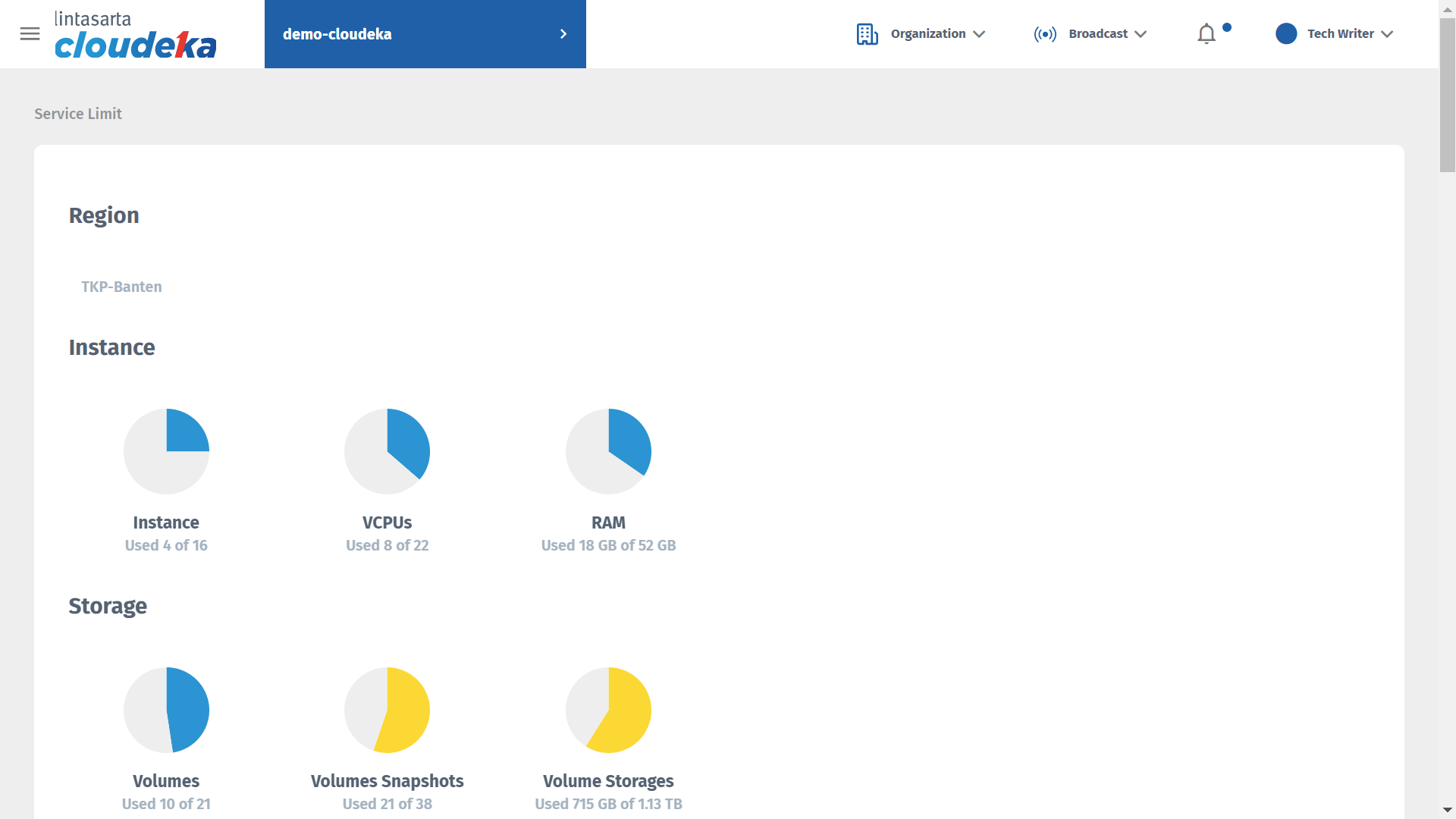
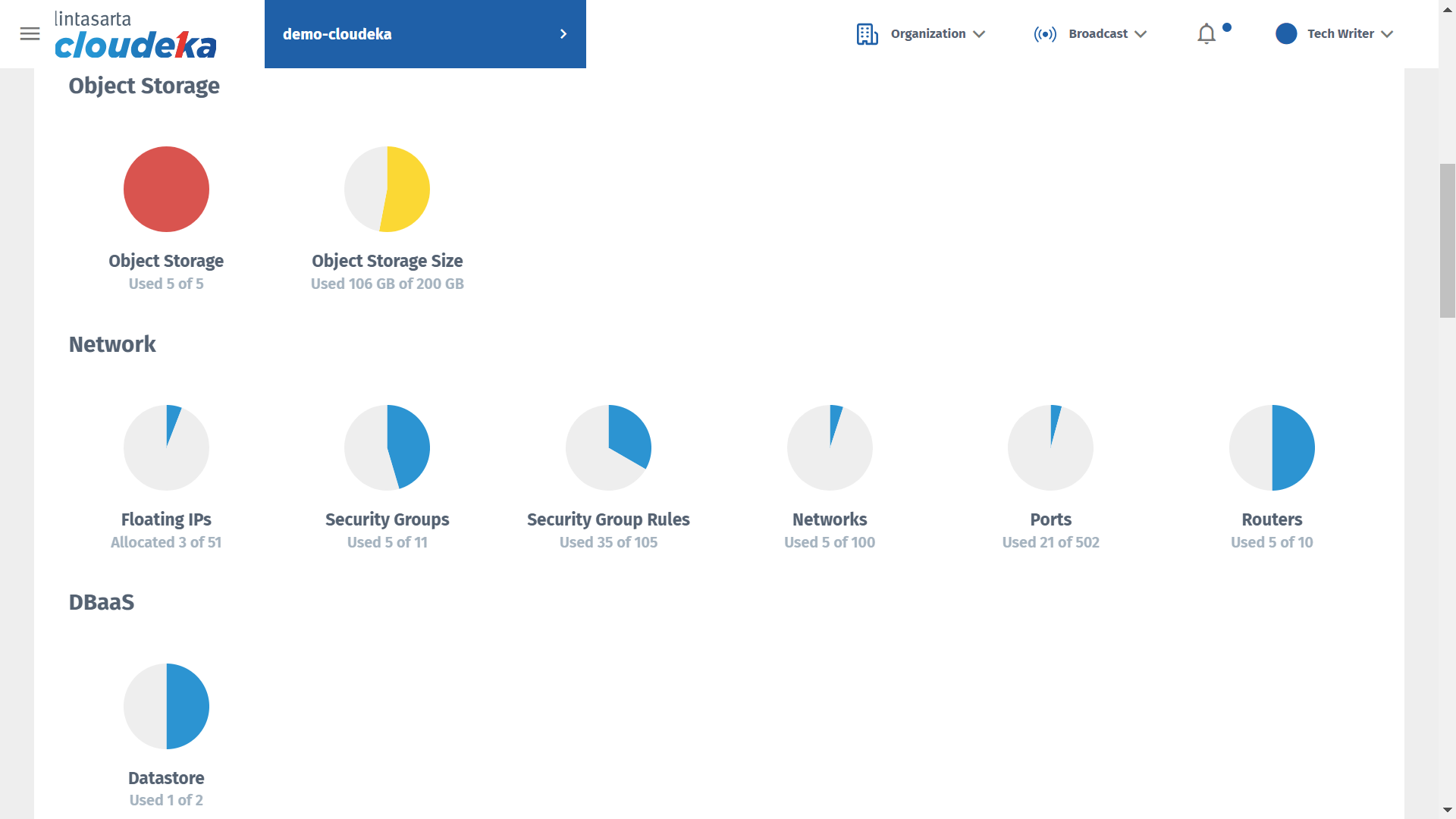
If you have been successfully create a project, you can see the information of project service limit. The service limit are usage status **Instance, Storage, Object Storage** and **Network**.

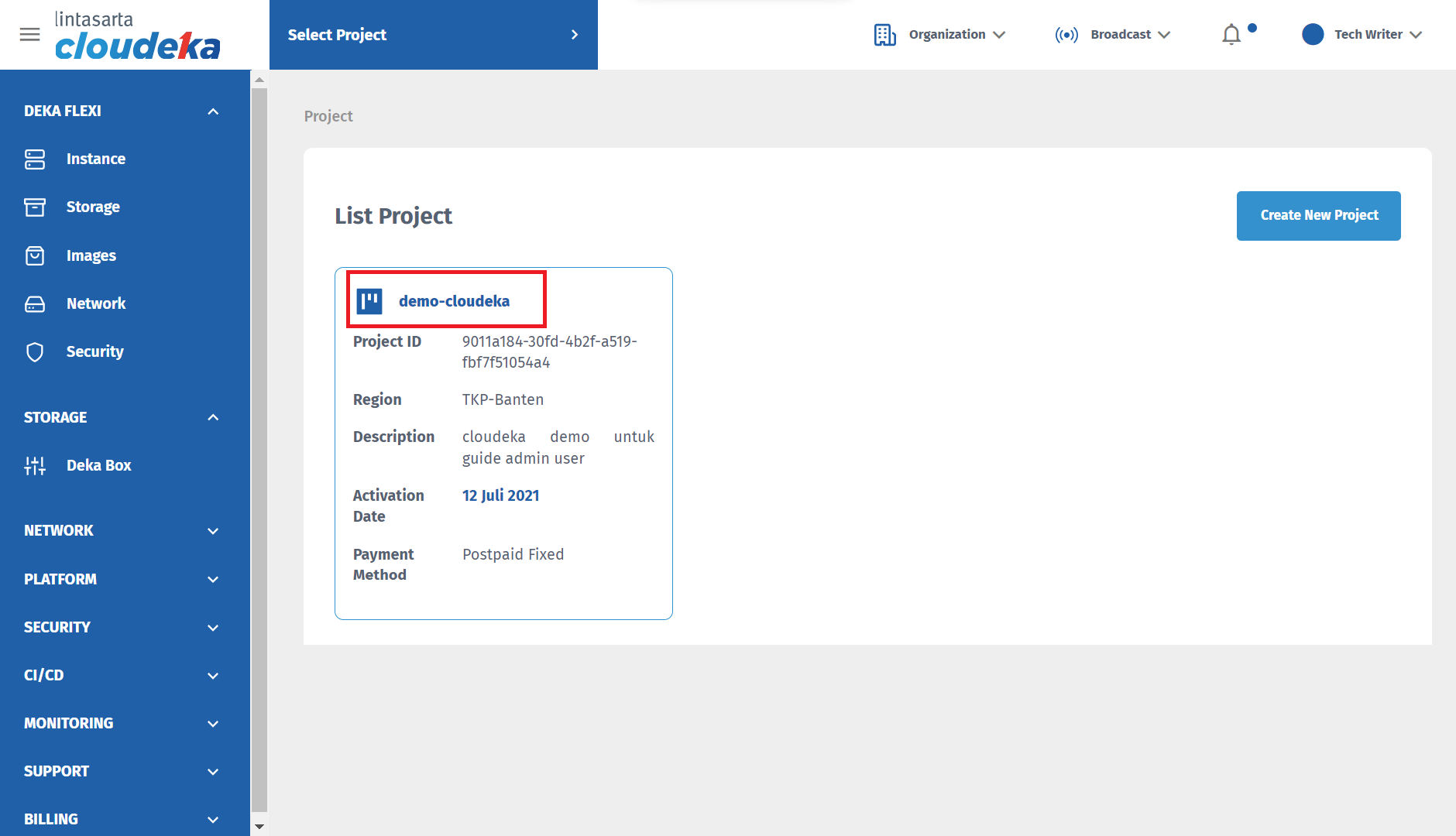
* On project list page, click the project name that you want to see it service limit information. **For example**, click **demo-cloudeka.**

<figure><img src="https://putri.box.cloudeka.id/cloudeka-assets/static/images/1serviceportal/1.20.a%20List%20Project.png" alt=""><figcaption><p>Project List</p></figcaption></figure>

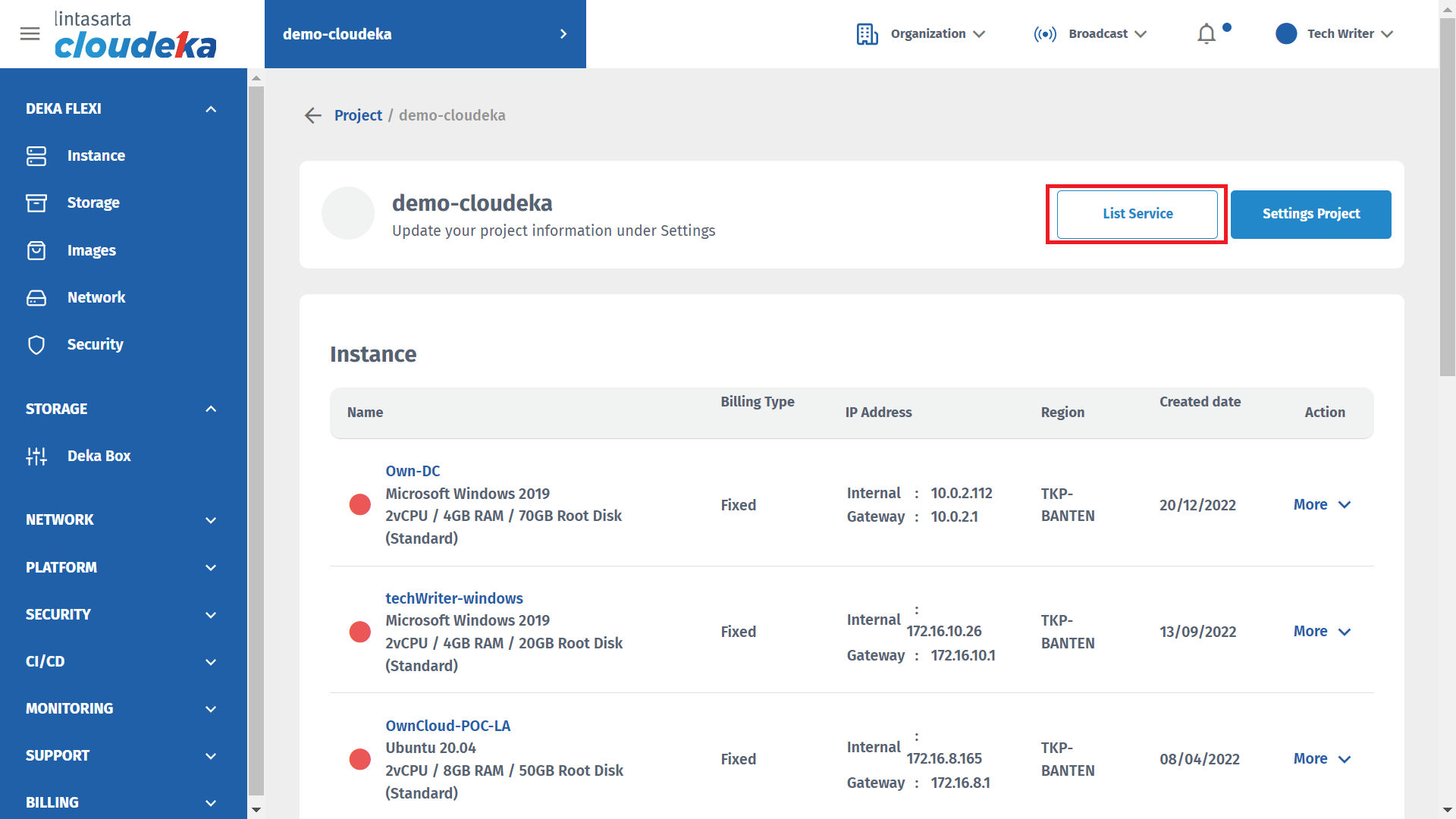
* The project detail will be appear, and then click **List Service** button.

<figure><img src="https://putri.box.cloudeka.id/cloudeka-assets/static/images/1serviceportal/1.20b%20Project%20Page.png" alt=""><figcaption><p>Detail Project</p></figcaption></figure>

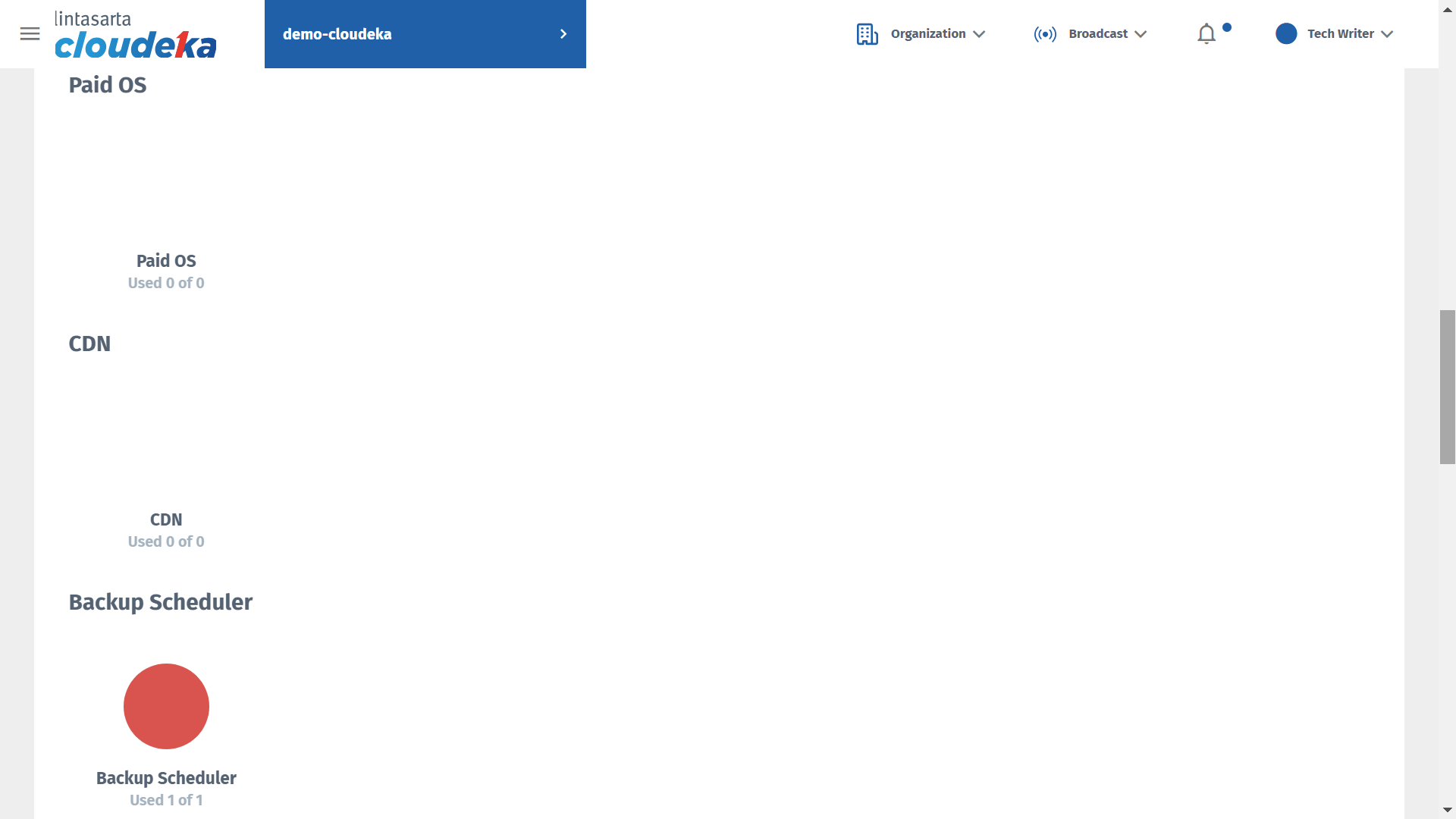
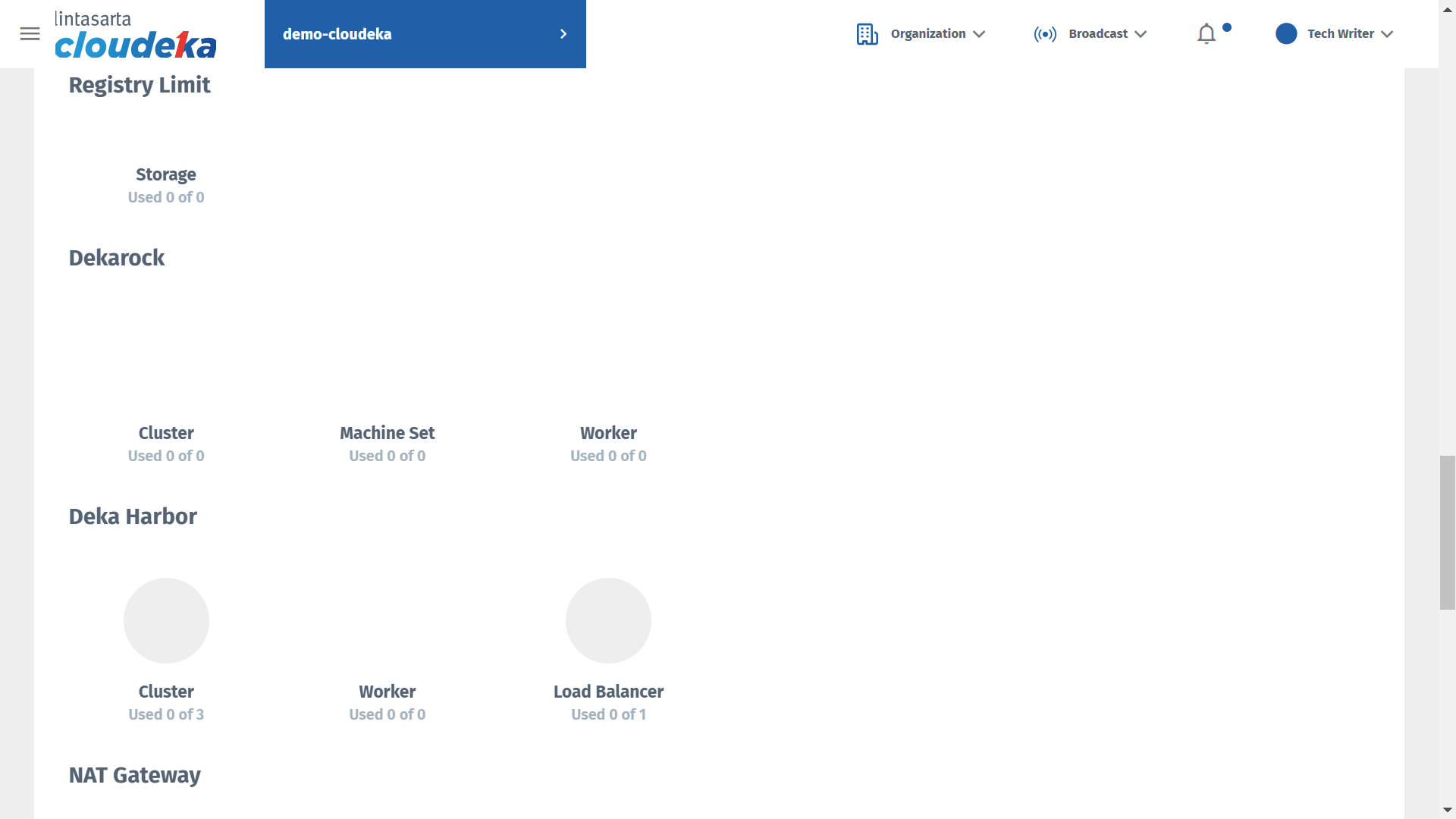
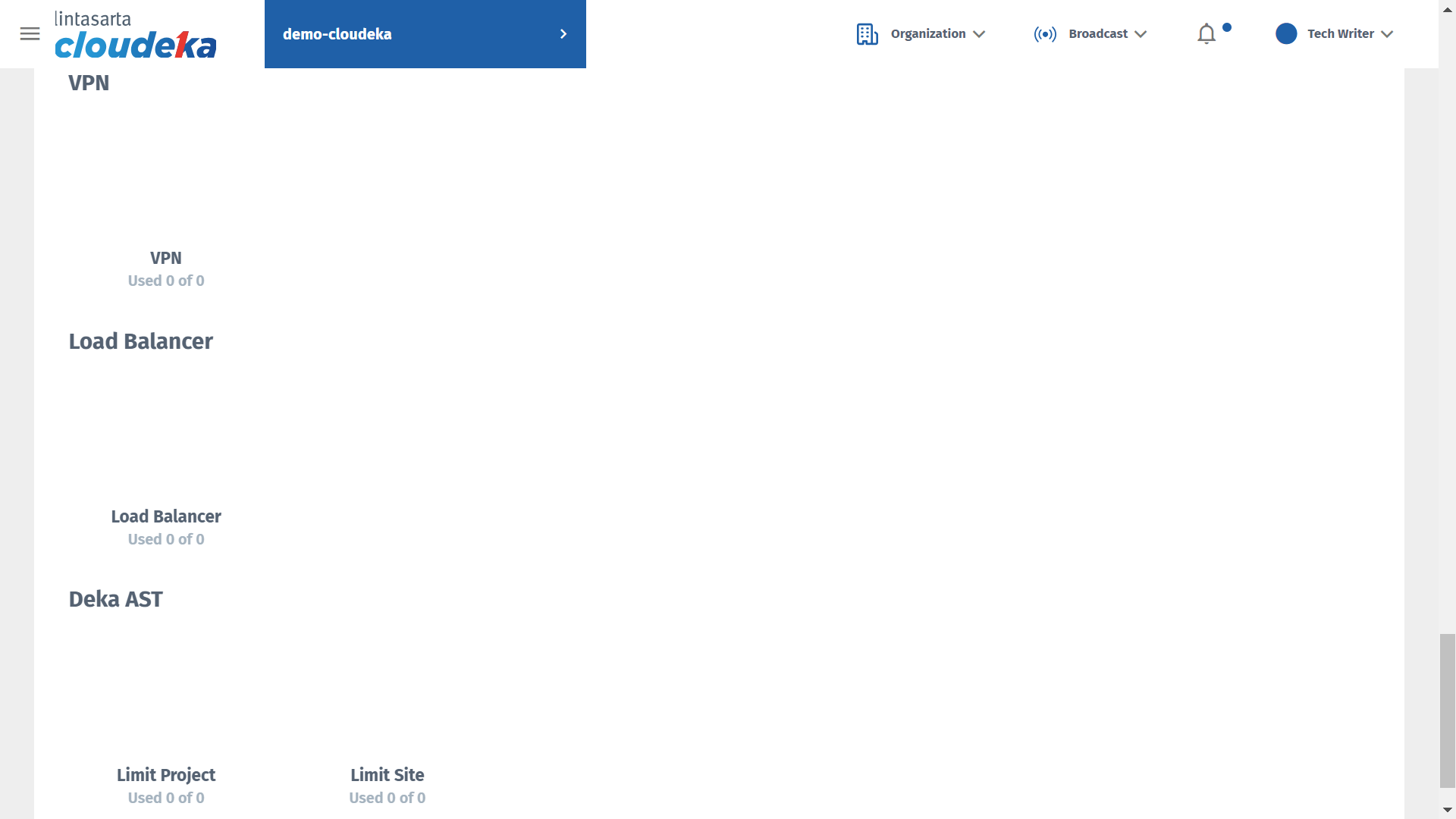
* The information of service limit of the project will be display
<figure><img src="https://putri.box.cloudeka.id/cloudeka-assets/static/images/1serviceportal/1.20c%20Service%20Limit%20Page.png" alt=""><figcaption><p>Service Limit</p></figcaption></figure>

<figure><img src="https://putri.box.cloudeka.id/cloudeka-assets/static/images/1serviceportal/1.20d%20Service%20Limit%20Page.png" alt=""><figcaption><p>Service Limit</p></figcaption></figure>

<figure><img src="https://putri.box.cloudeka.id/cloudeka-assets/static/images/1serviceportal/1.20e%20Service%20Limit%20Page.png" alt=""><figcaption><p>Service Limit</p></figcaption></figure>

<figure><img src="https://putri.box.cloudeka.id/cloudeka-assets/static/images/1serviceportal/1.20f%20Service%20Limit%20Page.png" alt=""><figcaption><p>Service Limit</p></figcaption></figure>

<figure><img src="https://putri.box.cloudeka.id/cloudeka-assets/static/images/1serviceportal/1.20g%20Service%20Limit%20Page.png" alt=""><figcaption></figcaption></figure>